

Getting Started
Creating a new Account – To create a new account, click the “Sign In” button on the top right of your screen. Inside the pop-up window, find “Not a member? Sign up”. Click that. In the new window, fill out your information and click “Register”.
How to Edit your Profile – Click on your name in the top right corner of your screen. Then click on “Update Profile.” This where you can change your password, add a photo and add/edit your account information.
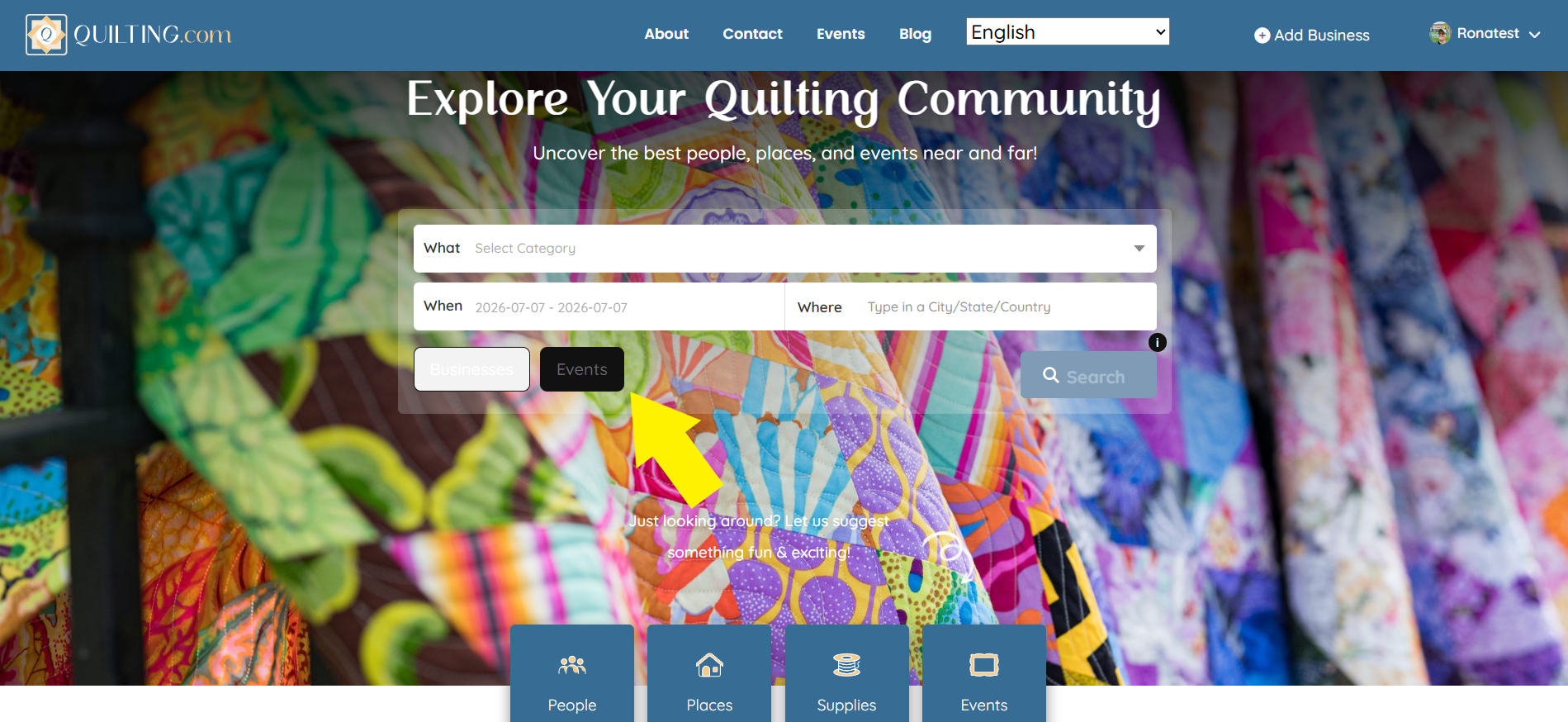
How to Search for a Business – There are 2 ways you can search for businesses on Quilting.com. The first is by either choosing the business category on the home page drop down (What) or entering the business name, then entering the location you’re searching (Where) and clicking “Search”. You must enter a location (Where) for the search function to work properly.

The second way to search is to click on one of the Blue boxes (People, Places or Supplies) and choosing a drop-down category. This will give you wider search results if you don’t have a specific location you’re searching in.
How to Search for Events – The same as searching for a business, to search for events you can either click on the “Events” tab on the Home page and enter the category (What), location (Where) and date range (When), or you can click on the Blue “Events” box below and choose a drop-down category. Again, this gives you a wider results location range.
How to Leave a Review – Leaving a review for a business is a great way to show your support and share your experience visiting/interacting with that business! To leave a review, simply go to their business page, scroll to the bottom to find the “Leave a Review” box.
From there you can either leave just a star level review, or you can click the down arrow to open the review box and leave a full comment.
Please keep in mind that we only allow honest and personal reviews of our businesses. See our Terms & Conditions for full detail of our review practices.
How to Contact the Businesses – Want to reach out to a business directly? If they’ve claimed their page, you can do just that! Simply head to that business’ page and find the “Contact Business Owner” block on the right-hand side. Then, simply fill it out and click “Send”.
If a business has not yet claimed their page, that contact box will not be there.
To see your Reviews and Comments, head over to your Dashboard by clicking on your name at the top right side of your screen and then “Dashboard.” Once there, you will see “Reviews” and “Inbox” on the left-hand side. This is where you will find reviews you’ve left and comments you’ve sent and received from businesses.
Businesses:
How to Add a Business– To add a new business you can do this by clicking on “Add Business” at the top of the Home Page. Or, click on “+ ADD BUSINESS” on the top of your Dashboard. Both of these will take you to the Plan Pricing page.
Here you can search for your business to see if it’s already on the site. If it’s not there, you can add your new business by clicking “Choose Plan” underneath the appropriate plan level. This will open a pop-up window where you will enter your business information.
After clicking “Save & Preview”, a message will be sent to us to approve your business. Once your business listing is approved, you’ll receive another email directing you back to your dashboard to view your business listing.
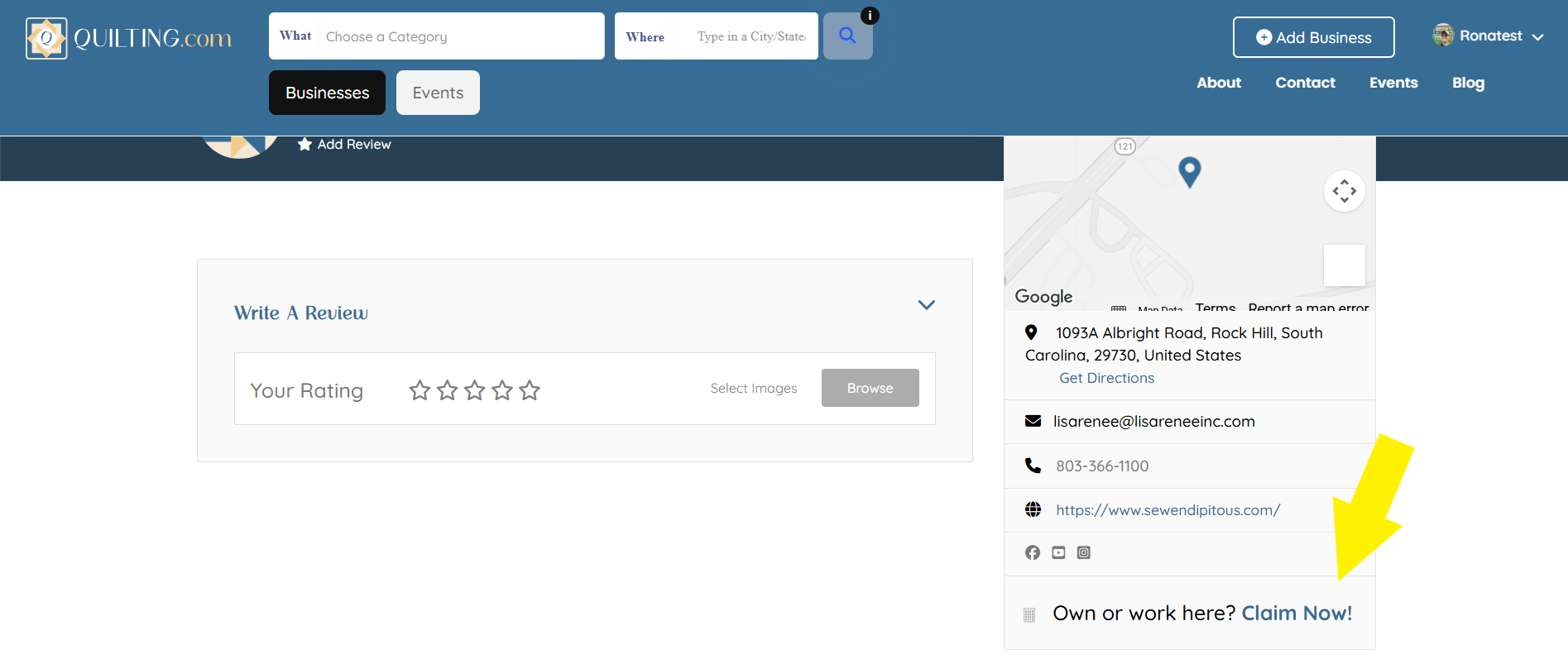
How to Claim a Business – To Claim a Business listing, go to the appropriate business page and click “Claim Now!” on the right-hand side.
In the pop-up window, fill out your information and click “Claim Your Business Now!”. Once your claim has been verified, you will receive an email confirmation from us instructing you to head to your Dashboard to begin editing your Business.
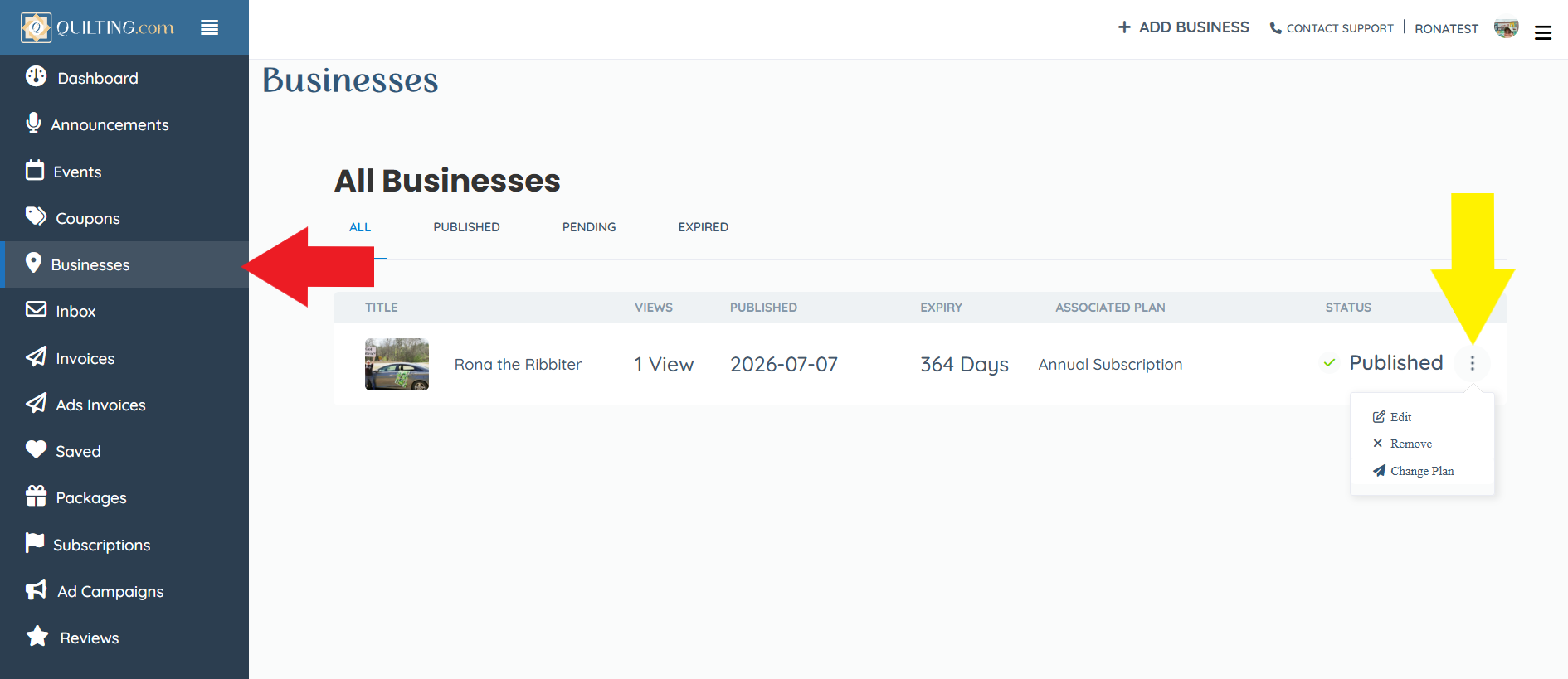
How to Edit your Business Listing – To make changes to your Business listing, go to your Dashboard > Businesses. On the right-hand side of your business, click on the 3 dots. Then, “Edit.” This will bring up a new window where you can add, edit or delete your Business Listing information.
How to Create and Edit an Event – To create an Event for your Business, go to your Dashboard > Events. Then click on “+ Add New.” This will bring up a new window where you can enter your Event details.

How to Create an Ad campaign – Advertising your Business on the site could not be easier! Simply head to your Dashboard > Ad Campaigns. Then click “+ Add New”. This will bring up a new window where you can choose when, where and for how long you want your Business Ad to run.

How to Create Coupons and Announcements – Customers always love a good Sale or Coupon. And Quilting.com lets you advertise both!
For Coupons, go to your Dashboard > Coupons. Then click on “+ Add New”. In the new window you can add all the details about your Coupon, including a linkable button customers can use to shop!
For Announcements, go to your Dashboard > Announcements. Then click on “+ Add New”. The new window will also have places for you to add any kind of announcement you’d like, including a clickable link!
How to View & Respond to Reviews and Messages – We love reviews and messages! It lets your customers feel heard and have an opportunity to ask questions, etc.
For your Reviews, go to your Dashboard > Reviews. Here you’ll find a list of everyone that has left a review on your Business listing. You can also reply to them!
For your Messages, go to your Dashboard > Inbox. Here you’ll find all of your customer correspondence. From here you can also contact your customer directly.
Non-Profits:
To apply for a Non-Profit Membership – You will need to submit your state and/or country verification of non-profit status for verification. Once you’ve filled out the Pricing Plan business listing application, you may send your non-profit documentation to Sales@Quilting.com.
Please include in your email:
- Your business name
- Associated Quilting.com Listing Link (If Available)
- A brief statement regarding your non-profit
- The appropriate state and/or country non-profit documentation.
Once your non-profit status has been verified, you will receive an email confirmation. For any questions or concerns, please email Sales@Quilting.com.